


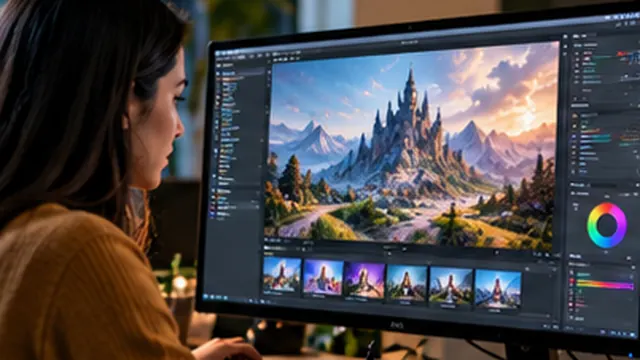
Free AI image editors can help remove backgrounds, clean up photographs, prepare product images, resize social graphics and restore older pictures. The right choice depends on the task, export quality, editing control, watermark rules and the provider’s current free-plan limits.
Try the tools on a real but non-sensitive sample: a product photo, family scan, menu image or social post. Inspect edges, faces, labels and colours before publishing, and check commercial-use terms when the image is for business work.
Put this guide into practice: real tasks, examples and AI tools
Use these workflows as practical starting points for everyday tasks. Each example names tools from the AIToolsBowl directory; choose the tool that fits your task, check its current features and pricing, and verify important outputs before acting.
- Remove a distracting background from a product photo: A home baker photographs a cake on a cluttered kitchen counter. Use PhotoRoom or Remove.bg to create a clean background, then inspect edges around icing, plates and decorations before posting.
- Prepare a consistent catalogue for a small shop: A clothing seller photographs 10 garments in the same lighting. Use Canva Magic Studio or Adobe Express to resize and lay out product cards; keep colours, fabric texture and fit true to the real item.
- Restore an old family photograph: Scan a family photo and test Clipdrop or Fotor AI for scratches, clarity and colour. Keep the original scan, compare faces carefully and avoid presenting reconstructed details as historically accurate.
- Create a festival greeting for WhatsApp: Use Canva or Adobe Express to make a square greeting with a short message, readable type and family/business logo. Check names, dates, spelling and image rights before sharing.
- Make a restaurant menu image easier to read: A restaurant owner uses Clipdrop to clean a genuine dish photo and Canva to place it in a menu layout. Verify dish names, ingredients, prices and allergen statements manually.
- Create a professional profile picture: Use Adobe Express or Fotor AI for light retouching and cropping of your own photograph. Keep facial features natural and do not create a misleading identity or professional credential.
- Resize one design for multiple social platforms: Create the master design in Canva and adapt it to Instagram square, story, YouTube thumbnail and LinkedIn landscape formats. Check text safe areas and crop after resizing.
- Remove an unwanted object from a travel photo: Use Clipdrop or Live3D AI Image Editor to remove a stray object from a personal travel photo. Review reflections, repeating patterns and background details for editing artefacts.
- Prepare a property listing image set: A homeowner uses REimagineHome or Virtual Staging AI to explore furniture layouts in an empty room. Label staged images clearly and include unedited photos so buyers are not misled.
- Improve an image for a presentation: Use Upscayl to enlarge a low-resolution image, then place it in Canva or Gamma. Upscaling cannot restore facts or details that were never captured; check for invented textures.
- Create a thumbnail for a tutorial video: Use Ideogram or Canva for a visual concept, then add final title text in the editor. Test readability at mobile size and avoid fake screenshots or claims.
- Prepare a before-and-after image responsibly: Use Adobe Express to place original and edited photos side by side. State what was changed and never use altered images as proof of a product result, medical outcome or news event.
How to get started
- Choose one specific task and define the result you need.
- Gather only the information required; remove personal, confidential or regulated data unless the provider and your organisation explicitly permit its use.
- Try one or two relevant tools with a small sample and compare output quality, effort, limitations and cost.
- Verify facts, calculations, links, permissions and any safety-critical advice with an authoritative source or qualified professional.
- Save the workflow that worked, record the date and tool plan tested, and review it when the provider changes features or terms.